
Whether you are developing software or designing a distributed system, writing quality documentation is essential for long-term development and maintenance. This blog will introduce you to various tools and practices to enhance your documentation.
Why write documentation?
Documentation helps users understand how to use and develop software effectively. It accelerates the onboarding process by providing structured information about the product, system architecture, methodologies, and work practices. It also serves as the source of truth in analysis, planning, and future updates.
You have made a decision. You have something in your mind you need to share. Crack the knuckles and start typing, but how, where, and using which tool?
I always picture the reader as someone who has little to no understanding of the subject. I try to use the terminology closest to them, draw examples in the real world that make sense, share as much useful information, and occasionally repeat myself.
When it comes to software work, choose an editor that makes work easy to write and for users to consume. Use different fonts, colors, headings, bullet points, and blank spaces. Highlight important details, make comparisons, and occasionally display tables or images.
Common text editing software
- WYSIWYG Editors
- Markdown Editors
- Template Apps
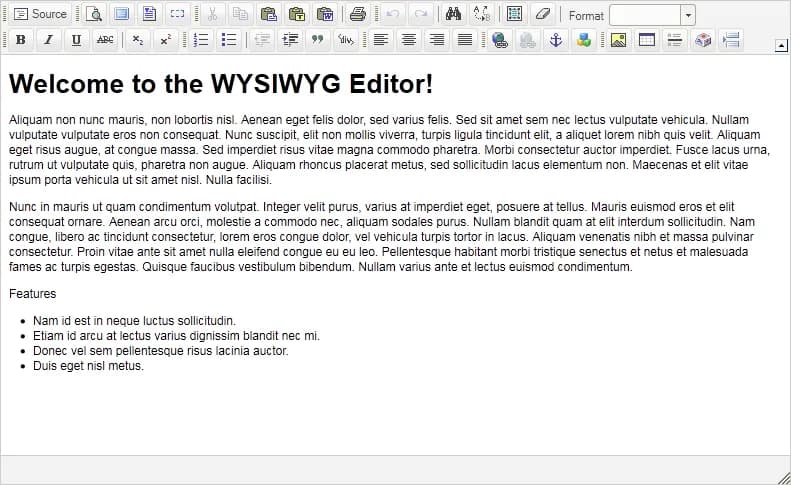
WYSIWYG
What You See Is What You Get is a type of editing software that allows users to see and edit content in a form that appears as it would when displayed on an interface, website, slide presentation, or printed document.
Writing is smooth and straightforward. Every text modification you need is set in the toolbar.
These tools include:
- Microsoft Word
- Apple Pages
- Google Docs
- Zoho Writer
- Notion
Markdown
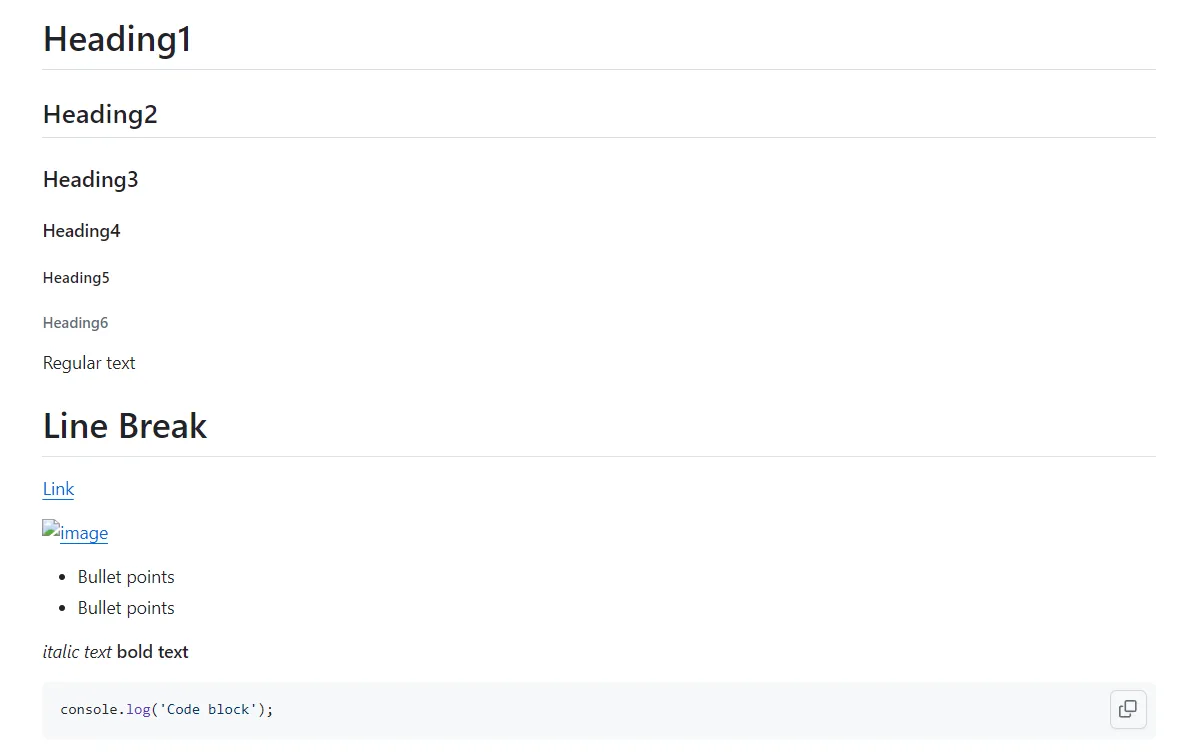
Markdown editors are a popular choice for writing technical documentation. Learn once, write anywhere as the syntax is the same no matter if you are writing a readme file on GitHub, a blog, or any other markdown template.
# Heading1
## Heading2
### Heading3
Regular Text
[Link](URL)

- Bullet points
- Bullet points
*italic text*
**bold text**
~~~js
console.log("Code block");
~~~The writing is usually done inside an IDE like Visual Studio Code, Notepad++, Vim, or online in any markdown editor.
Markdown generator
If writing code is an overhead for you, you can use a tool such as readme.so to generate markdown by clicking elements on the screen.
The output is raw markdown that you can download and use in your docs.
Template App
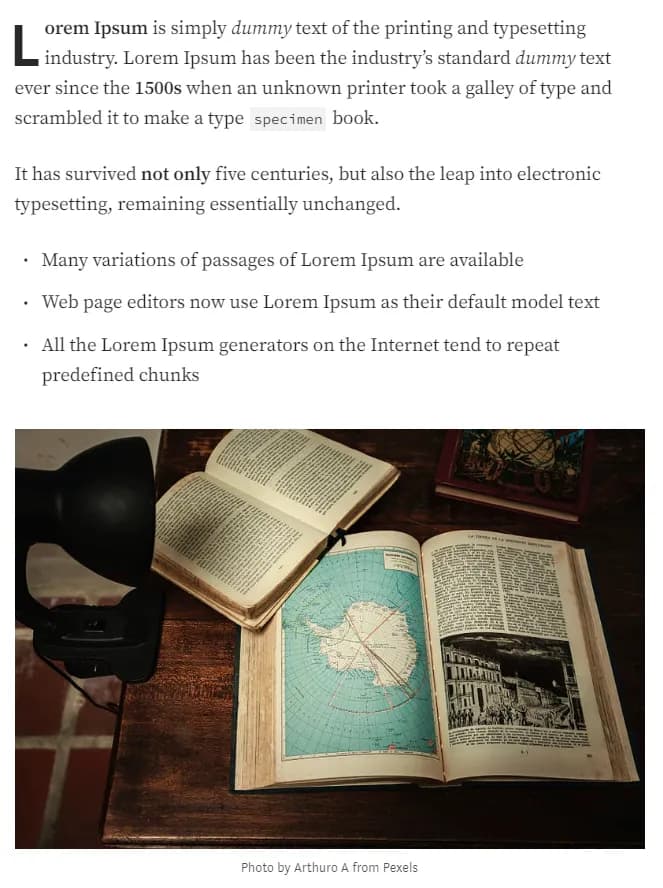
There are templates online built using popular web frameworks that are specifically designed around docs.
These include:
- Vanilla HTML and CSS
- Gatsby
- Next.js
- WordPress and similar tools
You can always build the docs site yourself.
Diagrams
Writing quality documentation is more than just mashing the keyboard. Sometimes it is better to draw a picture.
Diagrams and docs are a perfect fit because they showcase where a certain feature exists in the architecture, and how it works, transforms, and is consumed by other entities. Diagrams follow UML standards that are understood by developers, business analysts, and architects.
Standard categories:
- Structural diagrams
- Behavior diagrams
Commonly used diagrams:
- Data-flow diagram
- Entity-relational diagram
- UML class diagram
- Sequence diagram
Commonly used tools for drawing diagrams:
- Lucidchart
- Microsoft Visio
- Draw.io
- Excalidraw
It is common practice to design an app using three-level diagrams:
- Level 0: General project overview for stakeholders
- Level 1: Low-level diagrams that are more technical
- Level 2: Lower-level diagrams that describe the behavior of individual components and features

Besides drawing diagrams manually, you can use diagrams-as-code tools to generate architecture based on your code:
- Mermaid.js
- PlantUML
- Terrastruct
- Diagrams
Code Summary
It is common practice to write comments in the code to explain what a certain feature does or clarify why an implementation was needed. Using proper syntax, you can turn your comments into summaries.
In JavaScript, you can generate docs by typing / and hitting enter. Visual Studio Code then sets up a wrapper:
/**
 *
 */
Inside you can describe your classes, interfaces, functions, their properties, and return types however you like.
export const exceptionHandler = (
  error: IHTTPError,
  req: Request,
  res: Response,
  _next: NextFunction
) => {}
Now add comments using JSDoc syntax:
/**
 * Global Exception Handler
 * @param error - Custom Error interface containing error name, status code, message and stack trace
 * @param req - Express request object
 * @param res - Express response object
 * @param _next - Express next function
 * @returns HTTP error status code and appropriate message
 */
A similar feature can be found in other programming languages, like C#:
/// <summary>
/// Retrieves current weather
/// </summary>
/// <param name="ID">Item ID</param>
/// <returns>List WeatherForecast</returns>
[HttpGet("GetWeatherForecast")]
public IEnumerable<WeatherForecast> Get(int ID) { }
Typedoc
The Typedoc package can generate markup documentation pages based on the JSDoc comments you type in your editor.
npm i typedocOpen package.json and add a script that will run Typedoc.
{
  "scripts": {
    "build": "tsc",
    "type-docs": "typedoc"
  }
}
Then configure entry points and an output directory in tsconfig.json.
{
  "typedocOptions": {
    "entryPoints": ["src/shared/models/*.ts", "src/services/*.ts"],
    "out": "docs/typedoc"
  }
}
Run the script and browse the generated HTML documentation.
npm run type-docsSwagger
Swagger allows you to describe the structure of your APIs based on the OpenAPI specification. Once again, you are using code comments to generate documentation pages.
Using Swashbuckle for .NET Core or Swagger UI Express for Node.js, you can extend your APIs by generating Swagger docs based on your comments.
builder.Services.AddSwaggerGen(options =>
{
    options.SwaggerDoc("v1", new OpenApiInfo {
        Title = "Your Weather API",
        Description = "Weather API description",
        Version = "v1"
    });

    var fileName = Assembly.GetEntryAssembly().GetName().Name + ".xml";
    var filePath = Path.Combine(AppContext.BaseDirectory, fileName);
    options.IncludeXmlComments(filePath);
});
Postman Documentation
If you are using Postman to test APIs, you may not be aware that Postman comes with built-in API documentation.
You can add more context to APIs by writing the description for a collection or each endpoint. You can also save example responses, add examples, and publish your documentation online.
Keep Docs Up to Date
The documentation should be frequently reviewed and revised. Sometimes you forget how a certain feature works and you need a reminder. That is what documentation is for. If you are not writing docs, start now. If you are, take your time to get the quality right.